Xiaocai AI Books
Sign up & log in
All you need is a mobile number — start in 30 seconds.
- Tap “Sign up free” on this page, or open xc.jszs.cc in your phone browser
- Tap “Sign up” and enter your mobile number
- Set a password: at least 8 characters, with letters and digits
- Agree to the Privacy Policy and tap Sign up — done!
🔑 Forgot your password?
On the login page tap “Forgot password?” and reset it with an SMS code, or tap “SMS login” to log in without a password.
Meet the Home page
Everything you use most is right on Home.
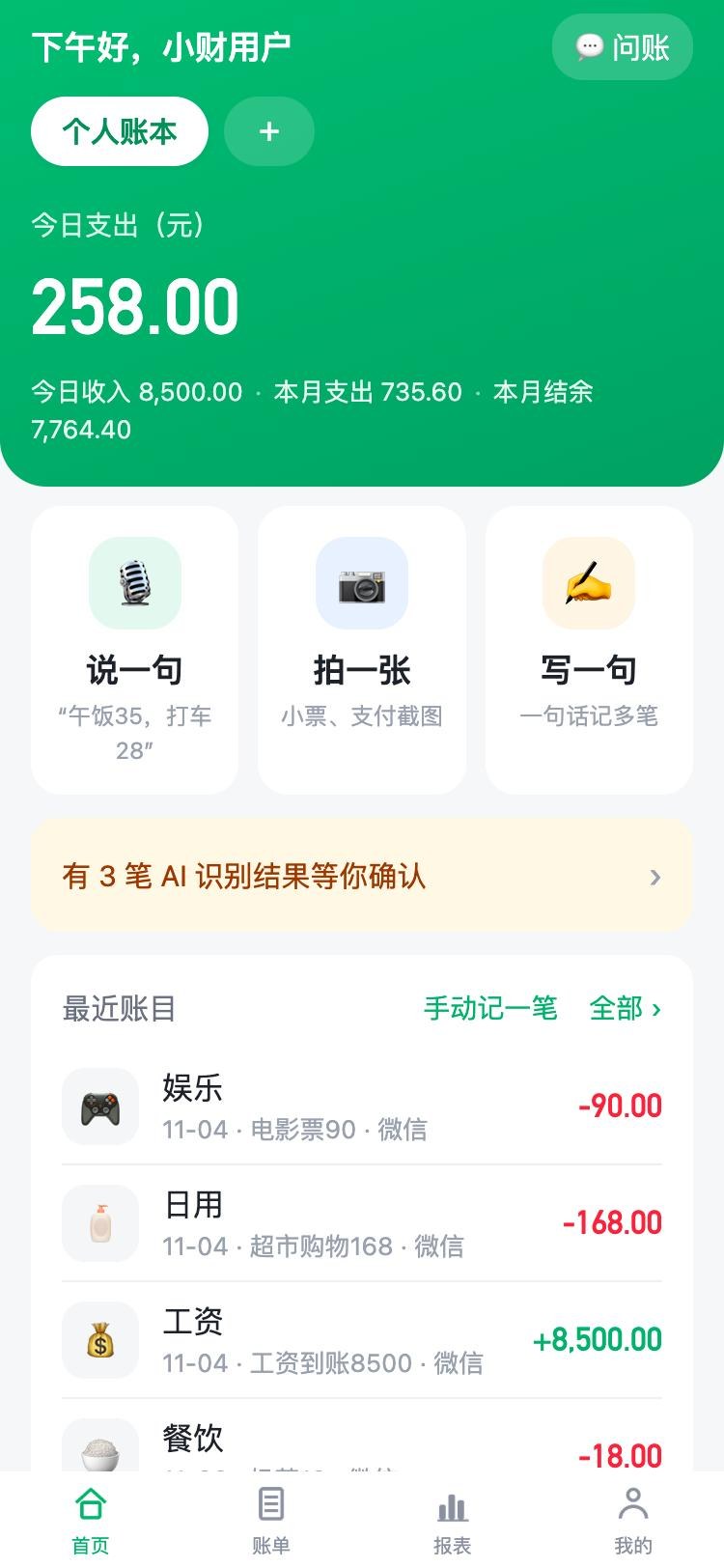
- At the top: spent today, this month's spending and balance
- Three big buttons: Speak / Snap / Type — AI records for you
- Yellow banner: entries waiting for you to confirm
- “Add manually”: enter the amount yourself, no AI
- “Ask AI” (top right): ask Xiaocai how much you spent
- Tap the book name to switch books, “+” to create one
🔄 Three steps to record
Speak, snap or type
Make sure it's right
See where money goes
Three ways to record with AI
Tap any big button on Home; switch modes anytime at the top.
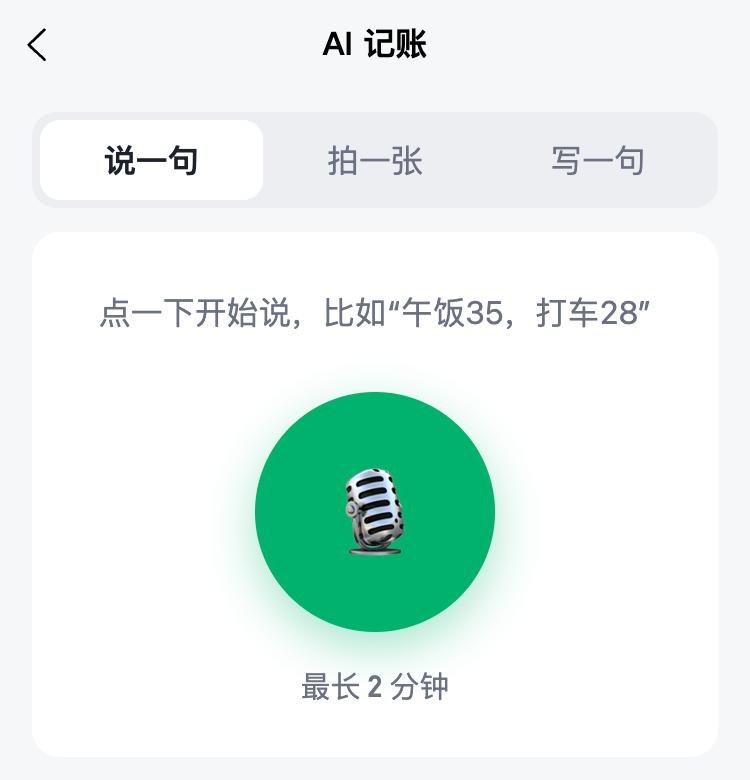
🎙️ Speak
- Tap the green mic and talk
- Tap again to stop
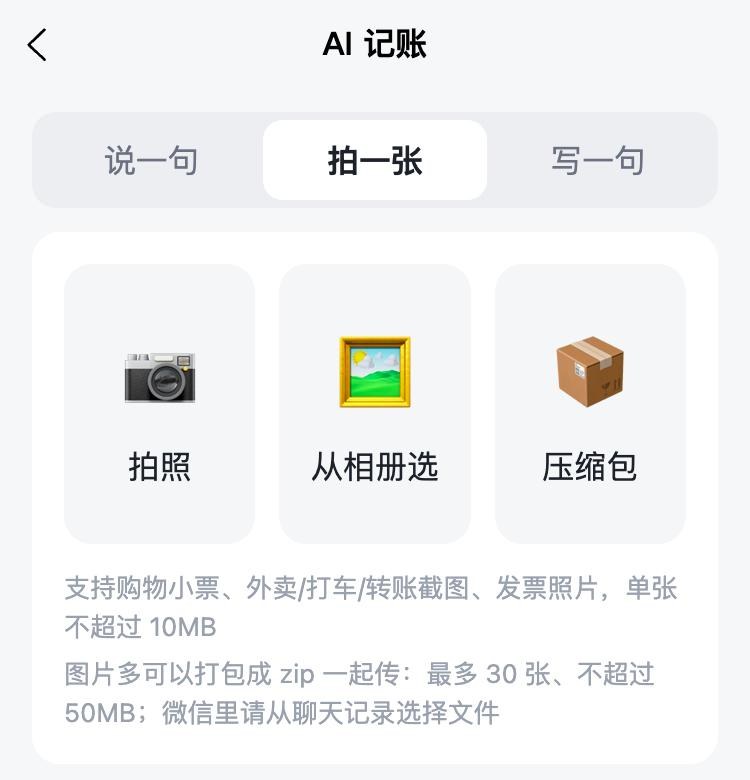
📷 Snap
Shoot receipts and invoices, or pick delivery, taxi or transfer screenshots from your album.
Up to 5 images at a time, 10 MB each; use a ZIP for more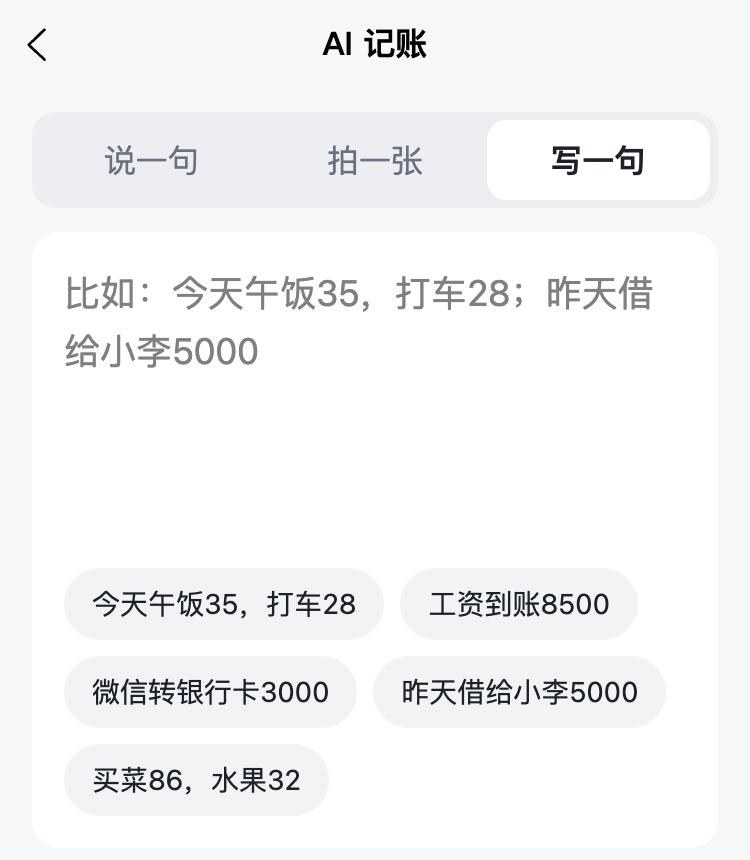
✍️ Type
Type like you're chatting — one line can hold several entries. Then tap “Recognize with AI”.
🗣️ Xiaocai understands things like
Lunch 35 today, taxi 28Groceries 86, fruit 32 yesterdaySalary received 8500 WeChat to bank card 3000Lent Li 5000Li paid me back 2000 Gas 300 last FridayTaobao refund 59Just say “what + how much”; words like “yesterday” or “last Friday” are turned into dates automatically.
📸 Photo tips
- Lay the receipt flat in good light; amount and date must be clear
- Keep screenshots complete — don't crop out the amount
- Several payments in one screenshot? Xiaocai splits them automatically
Confirm entries
AI only “reads” — nothing is recorded until you confirm.
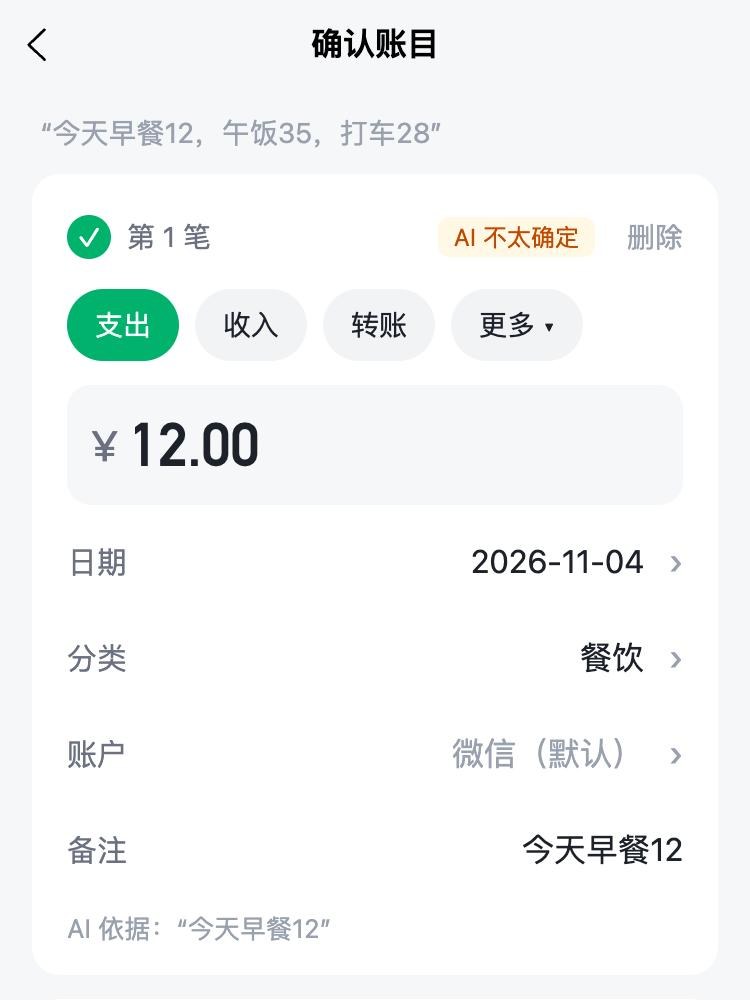
- Amount, category, date, account and note are all editable
- Only ticked entries are recorded; tap “Delete” for the rest
- See AI is unsure or “Date estimated”? Double-check it
- Possible duplicates are unticked by default
- Tap “Confirm N” at the bottom — done!
📦 Lots of images? Upload a ZIP
Dozens of receipts in one upload, confirmed in one go.
- Pack the receipt images into a .zipUp to 30 images, 50 MB, no password
- Open “Snap” and tap “📦 ZIP”In the WeChat mini program pick it from a chat; on the web pick it from your files
- Tap “Recognize with AI” — you'll see “Recognized 3 / 12 images”
- Confirm recognized entries as they appear, all on one page
- Every entry has “View original”
- Images recognized before are skipped automatically
- Each image counts as 1 AI use
Ledger & reports
Where did the money go? “Ledger” and “Reports” in the bottom menu tell you.
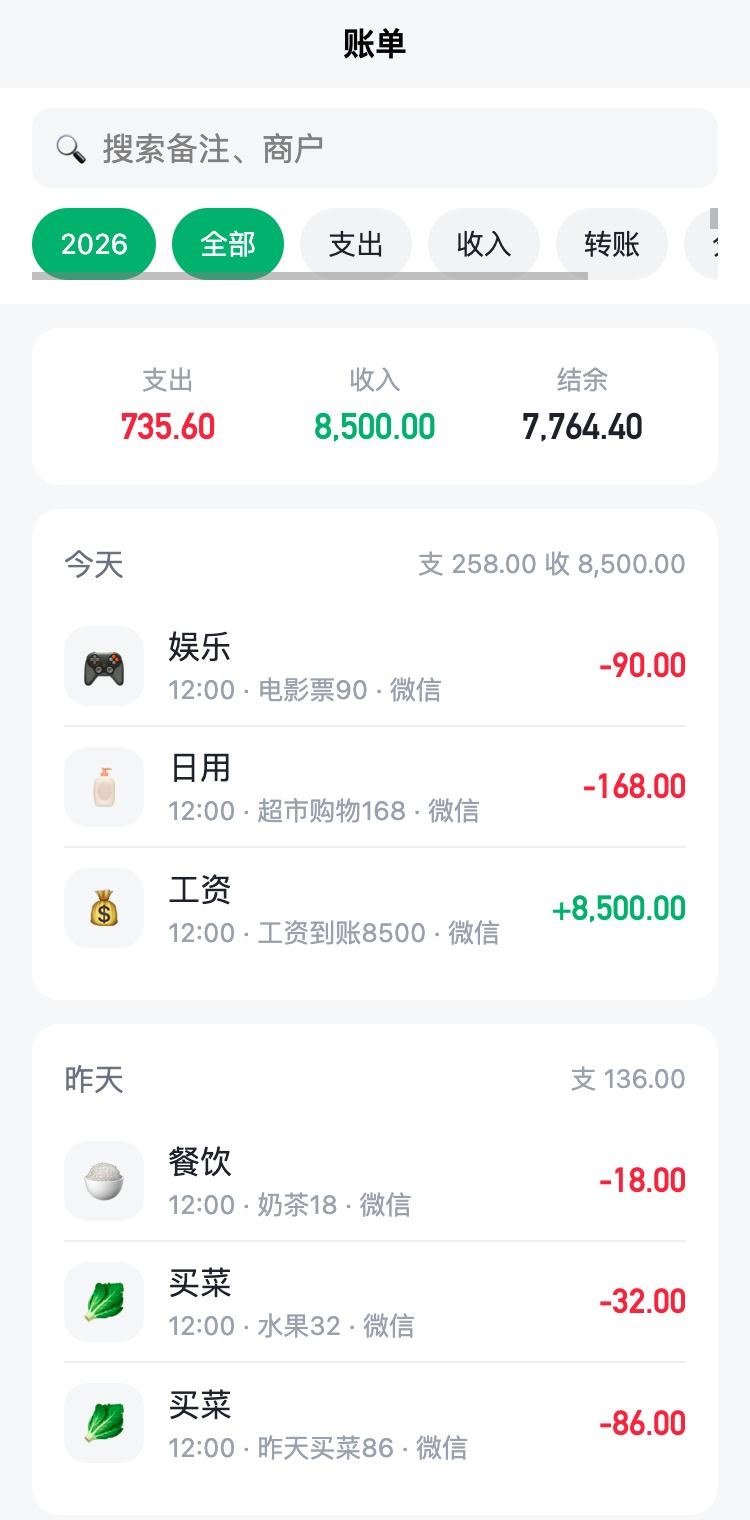
📒 Ledger
- Grouped by day — see each day's spending at a glance
- Search notes and merchants, filter by expense/income/transfer
- Tap any entry to edit or delete it and view the original
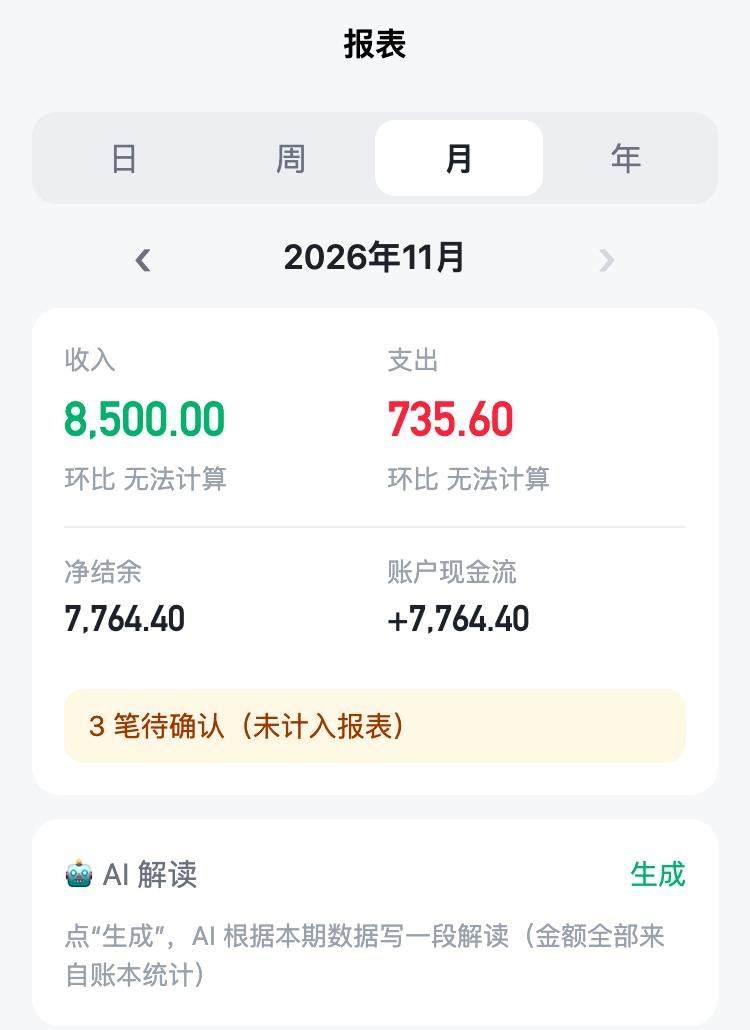
📊 Reports
- Switch day / week / month / year and page back through periods
- Income, expenses, balance — and how they compare to last period
- Trend charts and category breakdown
🤖 AI analysis Pro
“AI insight” writes a summary of the period; “Ask AI” answers questions like:
How much did I spend this month?How much on dining last month?Who still owes me money?More under “Me”
The rightmost tab holds everything else.
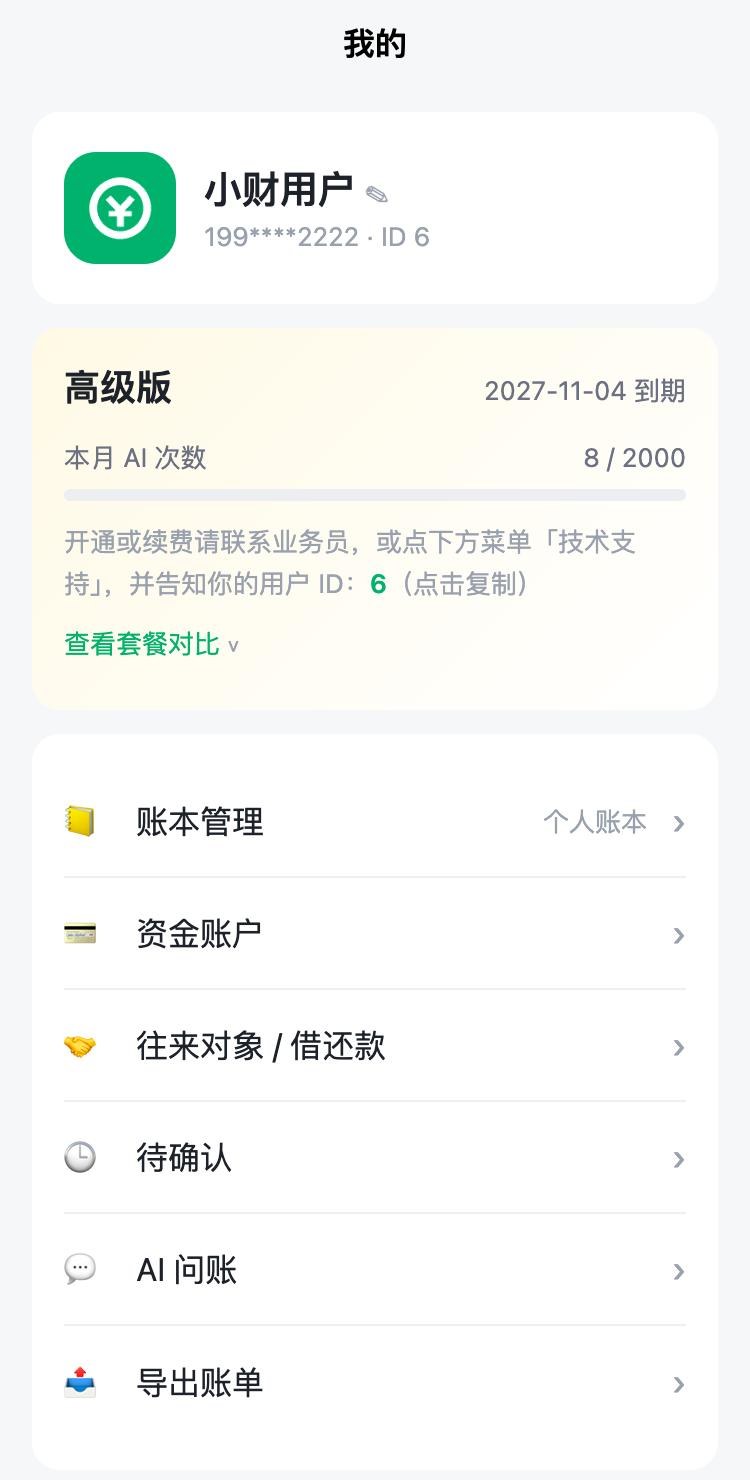
Books
Keep personal, family and business books apart, and invite family to join.
Accounts
WeChat, Alipay, cash, bank cards — balances calculated automatically.
Contacts / loans
Who you lent to and who paid back — never forget again.
Export Basic+
Pick a date range and export to Excel or CSV for reconciliation or expenses.
Language
Switch between 中文 and English anytime under “Me → Language”.
Support
Scan to add our support team for plans or any problem.
👨👩👧 Keep books with family
Basic and Pro can invite members, so the whole family shares one book.
Invite family
- Open “Me → Books”
- Tap “+ Invite” under the book you want to share
- Choose “Editor” or “Read-only”
- Send the 12-character invite code to them (valid 7 days)
How do they join?
Open Xiaocai → “Me” → “Books” → “Join with invite code” and enter the code.
Plans
Everyone starts on Free, and manual entries are always unlimited.
Free
- AI entries30/mo
- Personal book✓
- Family book—
- Business book—
- Members per book1
- Excel export—
- Ask AI / insights—
Basic
- AI entries300/mo
- Personal book✓
- Family book✓
- Business book—
- Members per book3
- Excel export✓
- Ask AI / insights—
Pro Everything
- AI entries2,000/mo
- Personal book✓
- Family book✓
- Business book✓
- Members per book20
- Excel export✓
- Ask AI / insights✓
AI uses reset on the 1st of each month; each image in a ZIP counts as 1.

🛒 How to subscribe or renew
- Open “Me” → “Upgrade” and pay with WeChat Pay — it activates instantly
- Or note the user ID on your plan card (tap to copy)
- …and send it to your sales rep or Support with the plan you want
- Back in “Me”, refresh to see your new plan and expiry date
Renewing the same plan extends it from the current expiry; upgrading mid-term converts the remaining time by price, so nothing is wasted.
FAQ
Tap a question to see the answer.